Principal Seat App Store

Your job search, organized and private, beside the rest of your life.

Every application, recruiter and interview in Career, with a follow-up on each. Household stays separate, even while the search is active.

Who it's for: Experienced professionals, from senior individual contributors to managers and directors, looking for their next role while employed or between jobs.
Download on the App Store

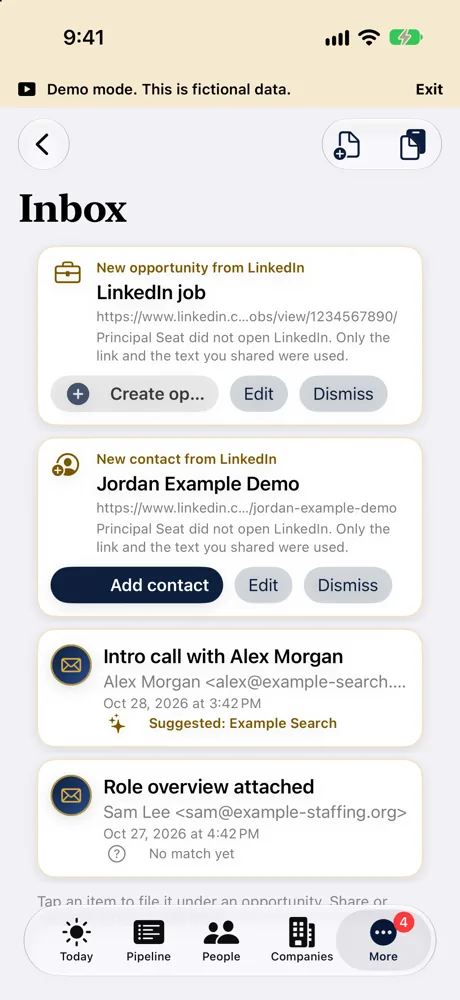
The Inbox on iPhone with a shared LinkedIn job ready to become an opportunity, a LinkedIn contact and two recruiter emails, all fictional demo data
Video coming soon

Three ways job seekers use it

1. Keep every application moving.

Track each role by stage, with the next step and a follow-up date.

  • Share a LinkedIn job link or paste a recruiter email into the Inbox, then turn it into a role
  • See who you know at each company (warm intros)
  • What you owe each recruiter, and what they owe you
More

Move each job from Recruiter contact to Screening call, Interviewing, Final round, Offer and Closed. Call it something like "Confidential retail company" until you can say more. Bring in your LinkedIn connections to see who you know at each company. Today shows which jobs have gone quiet and what is due.

  • Coming soon Pick Job seekers when you first open the app.
  • Coming soon An Applied stage, for roles you applied to before anyone called.
  • Coming soon Save a job from other job sites and careers pages in one tap. Only the link and the page title you share are saved.
  • Coming soon Note which version of your resume you sent for each role.

2. Walk into every interview prepared.

A call prep reminder tells you when to start, and a prep sheet pulls it all together (Premium).

  • The people you have met and your open promises, in one sheet
  • A Join button for video interviews
  • Your own AI assistant, like ChatGPT, Gemini, Claude or Grok, drafts prep notes and thank you emails
More

Call prep reminders, meeting Join buttons, Add to Calendar and the Email button with templates are in every plan. Prep sheets, Log a touch and two-way calendar sync are in Premium. Your AI assistant drafts. You read every draft and send it yourself.

3. Decide on an offer calmly.

Enter each offer's pay behind Face ID or Touch ID and compare it with your current job.

  • Compare two or three offers with your current role (Premium)
  • A private walk-away number that is never exported (Premium)
  • A coach PDF with no pay or notes (Premium)
More

The equity model, offer checklist and Negotiation numbers are free for one opportunity and unlimited in Premium. The coach PDF leaves out pay, your walk-away number, notes and other people's details.

Your AI assistant helps with the words. Send your search to your own AI assistant with pay left out, ask for interview prep or a thank you note, and send it yourself.

A month with Principal Seat (fictional example)

Marisol Tennant is a Senior Product Marketing Manager at Cobbleway Logistics and is quietly looking for a lead role.

  1. Monday: a LinkedIn job link for Sorrelfield Health becomes a role. A former colleague works there.
  2. Tuesday: a recruiter email about Larkspan Software becomes a role with a follow-up in 2 days.
  3. Wednesday: a quiet role is closed after Pipeline health flags it.
  4. Thursday: the interview reminder shows only the time, not the company, on Marisol's locked iPhone.
  5. Two weeks later: the Larkspan offer's pay goes in behind Face ID or Touch ID, side by side with the current job.
  6. What never went out: pay and the walk-away number, for every AI send.
Read Marisol's full story
  • Monday. Marisol shares a LinkedIn job link for Product Marketing Lead at Sorrelfield Health into the Inbox and turns it into an opportunity. Warm intros show that a former colleague, Bea Strand, works there. Marisol asks Bea for a referral.
  • Tuesday. Devin Okoro, an agency recruiter at Tallowbrook Talent, emails about a Senior Product Marketing Manager role at Larkspan Software. Marisol pastes the email into the Inbox. It becomes an opportunity at Recruiter contact with a follow-up in 2 days.
  • Wednesday. A third role sits under the neutral name "Confidential retail company". Pipeline health shows it has been quiet for 14 days. Marisol closes it.
  • Thursday. The call prep reminder for Sorrelfield Health arrives. Marisol left Show names on Lock Screen off, so her locked iPhone shows only Call at 9:30 AM and an Upcoming call countdown, with no company name. She opens the prep sheet, meets the hiring manager, Gideon Thackeray, and sends the thank you from Mail.
  • Two weeks later. Larkspan Software makes an offer. Marisol enters the pay behind Face ID or Touch ID and compares it side by side with her current role at Cobbleway Logistics, then records a private walk-away number.
  • What never went out. Pay and the walk-away number, because Include pay, rates and prices stayed off for every AI send. Marisol uses Premium.

Privacy

  • Your data stays on your devices and in your own iCloud. We do not receive it.
  • Pay and contact details go to your AI assistant only when you turn them on.
  • Offer pay and your walk-away number sit behind Face ID or Touch ID, and reminders keep company names off your Lock Screen by default.
More on privacy
  • Your data stays with you. Your data stays on your devices and in your own iCloud account. We do not receive it. The app has no accounts, no analytics, no ads and no tracking.
  • Pay goes only when you say so. Pay is sent to your AI assistant or an export only when you turn on Include pay, rates and prices for that send.
  • Typed text goes as written. Keep pay in the pay fields, not in notes, so the pay switch covers it.
  • Contact details are off by default. When you send to your AI assistant or share a snapshot, email, phone, LinkedIn and website go only if you turn on Include contact details. Names and roles are always included. Client and contact postal addresses are never sent, and snapshots never carry an address.
  • Your lock screen, your rules. Show names on Lock Screen is off by default, so reminders, Lock Screen widgets and the call Live Activity show times and counts, not company names. If you turn it on, names can show on a locked iPhone. The Apple Watch app lists your follow-ups by company, so keep a passcode on your watch. On a Mac, notifications carry full details, so in System Settings, Notifications, set Show previews for Principal Seat to When Unlocked or Never before you share your screen.
  • Home Screen widgets. Home Screen widgets show company names unless you turn off Show names on Home Screen widgets in the app.
  • Out of sight at work. On iPhone and iPad, a Focus filter can hide your job search inside the app while a Focus is on. It does not change what Siri, Shortcuts or notifications show. The filter does not hide notifications or widgets, so set those in the Focus itself. Focus filters are not on the Mac yet.
  • Your calendar, your choice. Calendar events carry the company and role. If you add interviews or turn on calendar sync, choose Create a Principal Seat calendar or another personal calendar that is not shared and not on a work account.
  • Keep it personal. Use a personal iPhone and Apple Account, not one your employer manages, and your own AI assistant account, like ChatGPT, Gemini, Claude or Grok, for Send to AI assistant. Notify another app or service, including a snapshot of where things stand, sends your search to the address you set, with company names on by default, so point them only at your own tools.
  • Company news is your call. Company news sends the names of the companies you track to Google News to fetch headlines, and only after you switch it on or say yes to a one time notice.
  • Your walk-away number is never exported. Not in snapshots, anything sent to AI, exports or the coach PDF, even with Include pay, rates and prices on. It is kept only in your backups and your own iCloud sync.
  • Sharing your screen. Turn on Hide amounts on screen before a screen share, or use Demo mode to show the app with fictional data.
  • Coming soon Feedback stays discreet. When you send us feedback with app details included, the email ends with one line saying what you use the app for, such as "Using it for: job search". It is in the body, never the subject. Turn app details off, or delete the line before you send. For extra care, send feedback from a personal mail account.

See the privacy policy.

The rest of your life, in the same app

Career holds the search. Household stays separate, even while the search is active.

  • The lease, renters or home insurance, car insurance and appliance warranties, in Household.
  • Share Household with a partner or roommate. Your applications, recruiters and offers stay in Career.
  • To see a search next to home and care, try Sam Patel in Demo mode. Open Settings, Help and demo, pick the made-up person, and turn on the selected demo. Your own info stays as it is. Marisol Tennant is a fictional example on this page and is not a Demo mode person.

Fictional examples. See how spaces work. Sharing limits are on Plans.

Plans

Free

5 live opportunities plus one file import. Follow-ups, reminders, warm intros, the Inbox and iCloud sync included.

Premium

$14.99 a month, or $99 a year, or a $59 six-month pass that does not renew. The monthly and yearly plans share one 14-day free trial with Premium Portfolio.
For an active search: unlimited live opportunities, prep sheets, Compare two or three offers with your current role, the coach PDF, two-way calendar sync and the weekly summary.

The Apple Watch app is free. All paid plans share one 14-day free trial. Prices and details may change. Compare plans

Principal Seat app icon: a gold executive chair on navy

Run your search in private.

On the App Store for iPhone, iPad, Mac and Apple Watch.

Download on the App Store